First, what is the notch?
It is the small black cutout at the top of the screen on every MacBook Pro since 2021 and every MacBook Air since 2022. Apple put the camera in it and handed the strip on either side to the menu bar.
The black part in the middle does nothing. You cannot click it. Nothing lives there. It is the one piece of your screen that has never done a day's work.
That is the piece Notch Buddy uses. And if your Mac has no notch, the app draws one — the tools work the same either way.
The whole app, in three moves
There is not much to learn here. It is really just this:
- Move your pointer onto the notch. A panel drops down underneath it, like a drawer.
- Pick a tool. Each one has its own panel, and you switch between them from the row of icons.
- Move away. It closes, and the notch goes back to being a notch.
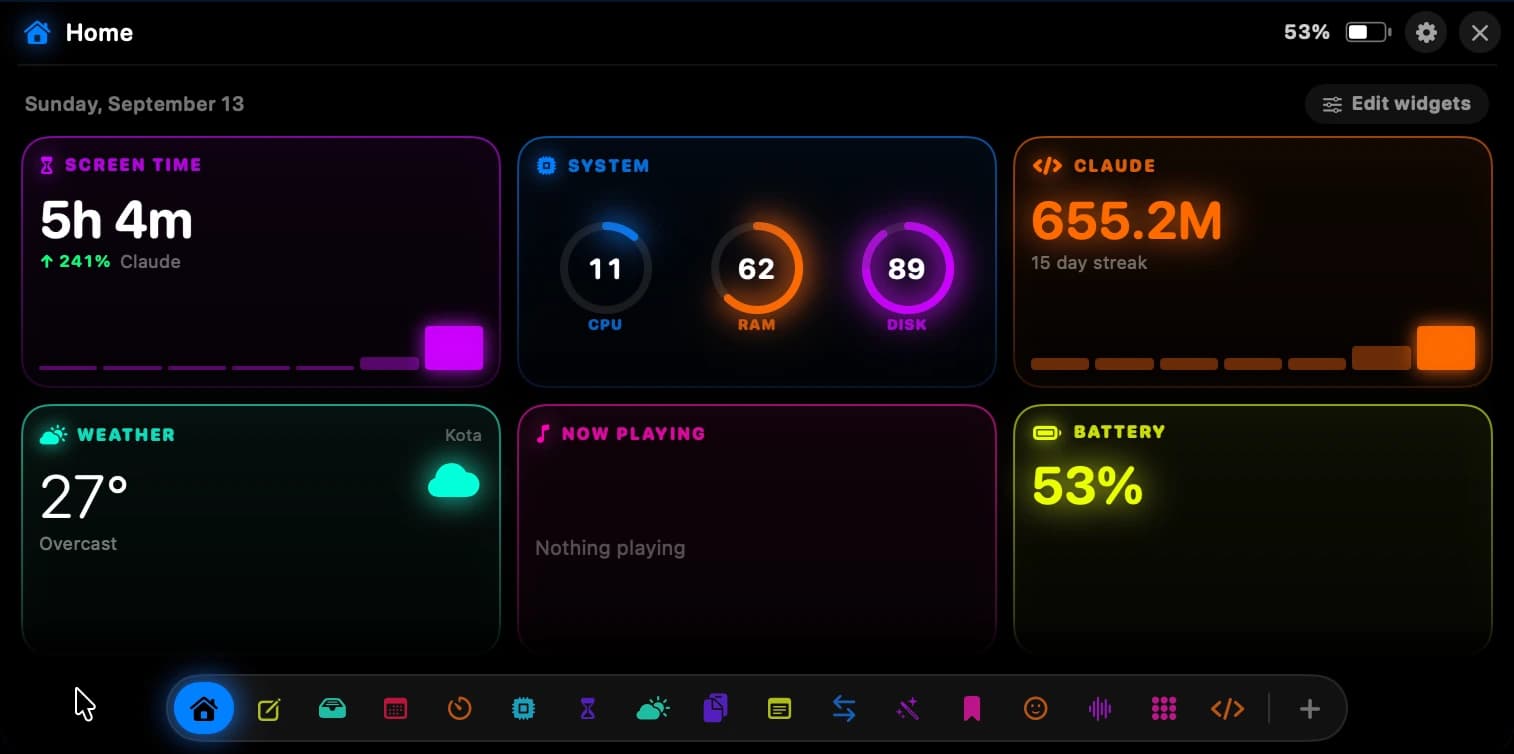
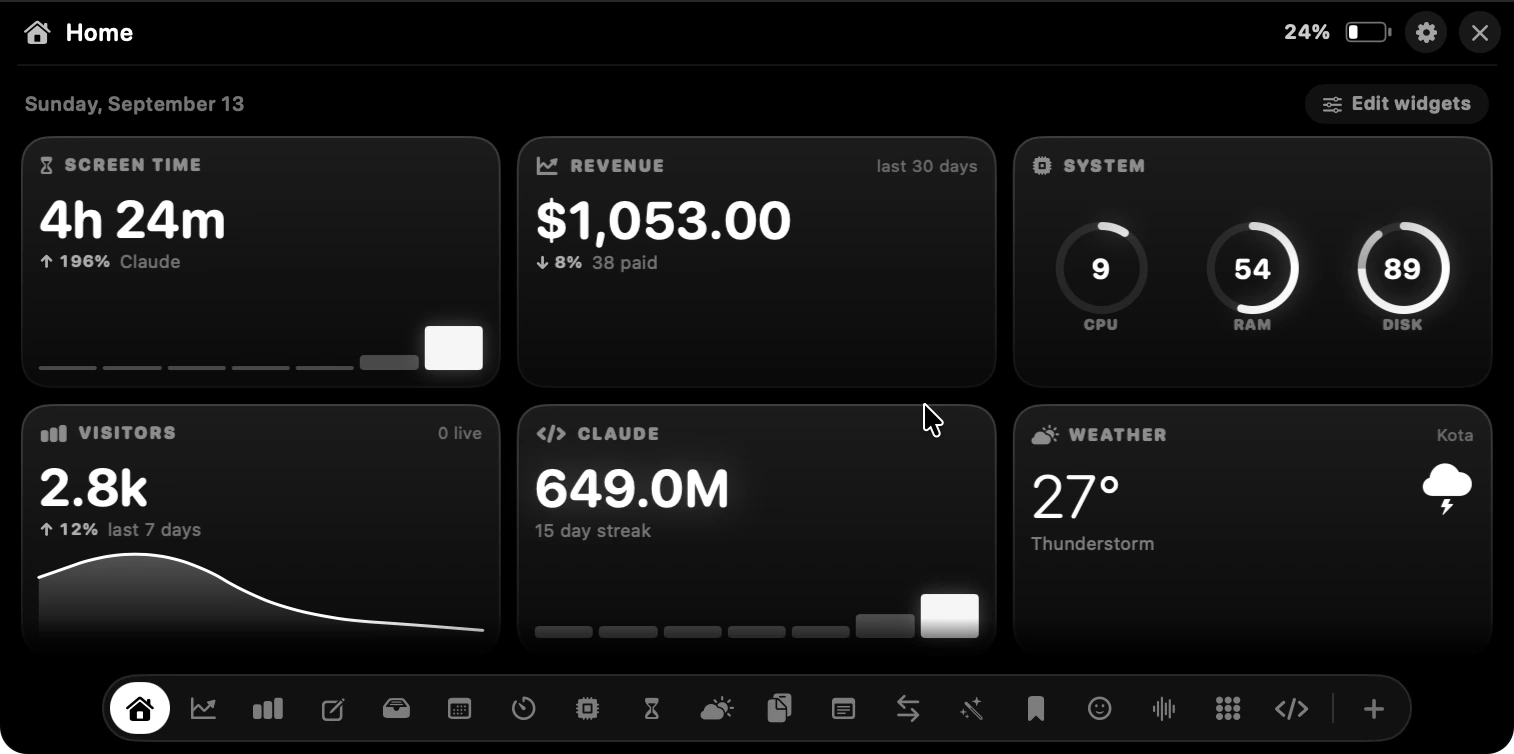
The first panel you meet is Home: what is playing, what is next in your calendar, and the apps you open most, all in one place. It is where most people leave it.
Your money, without opening a dashboard
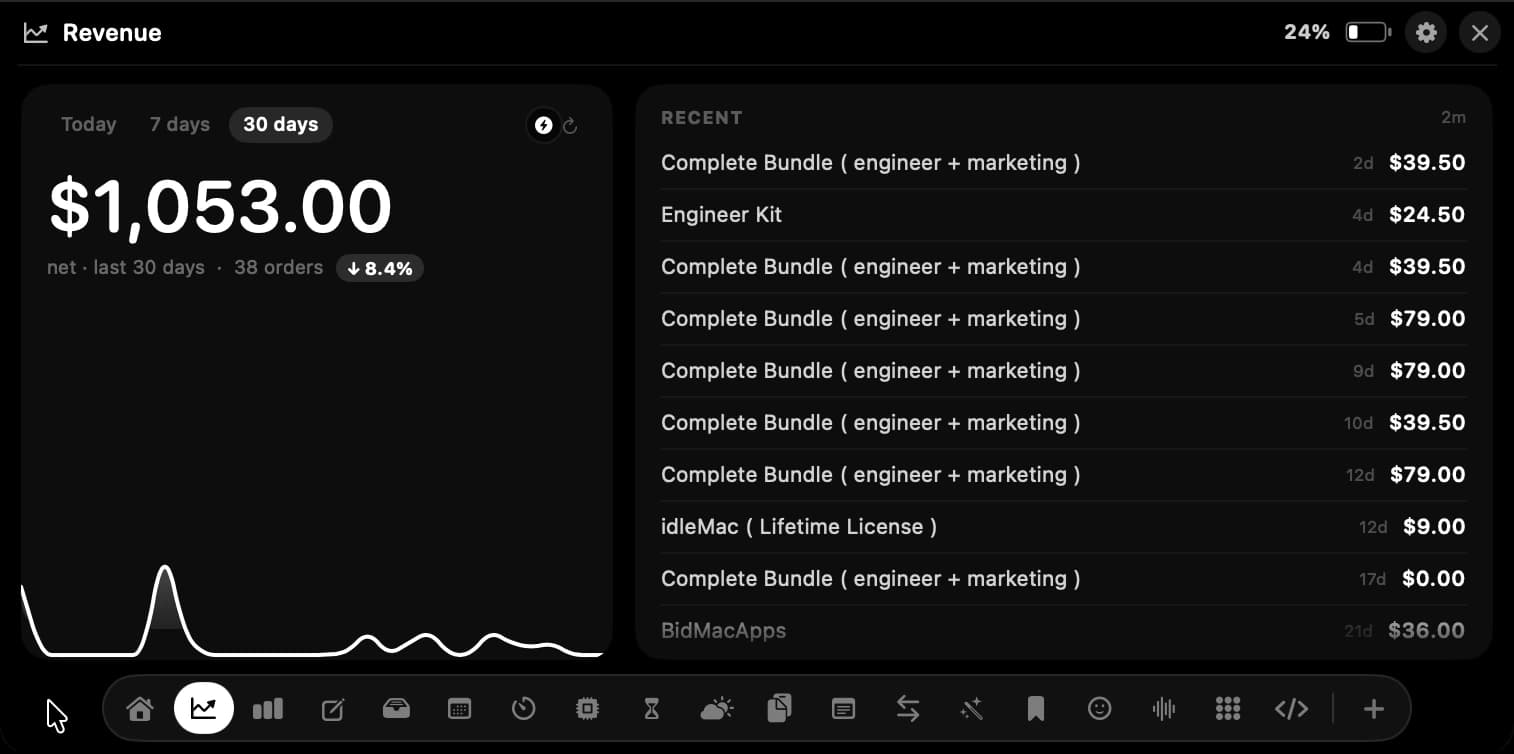
If you sell anything online, you know the loop: open a tab, log in, look at a number, close the tab, do it again twenty minutes later.
The Revenue tool ends that. Paste in a read-only key from Stripe, Polar, Dodo Payments or Lemon Squeezy and today's takings sit in the notch. Every sale arrives as a small banner with the amount on it, and the running total stays behind after the banner fades.
The key is read-only and it stays in your Mac's keychain. It can look at your numbers; it cannot touch your account.
Your traffic, without opening a tab
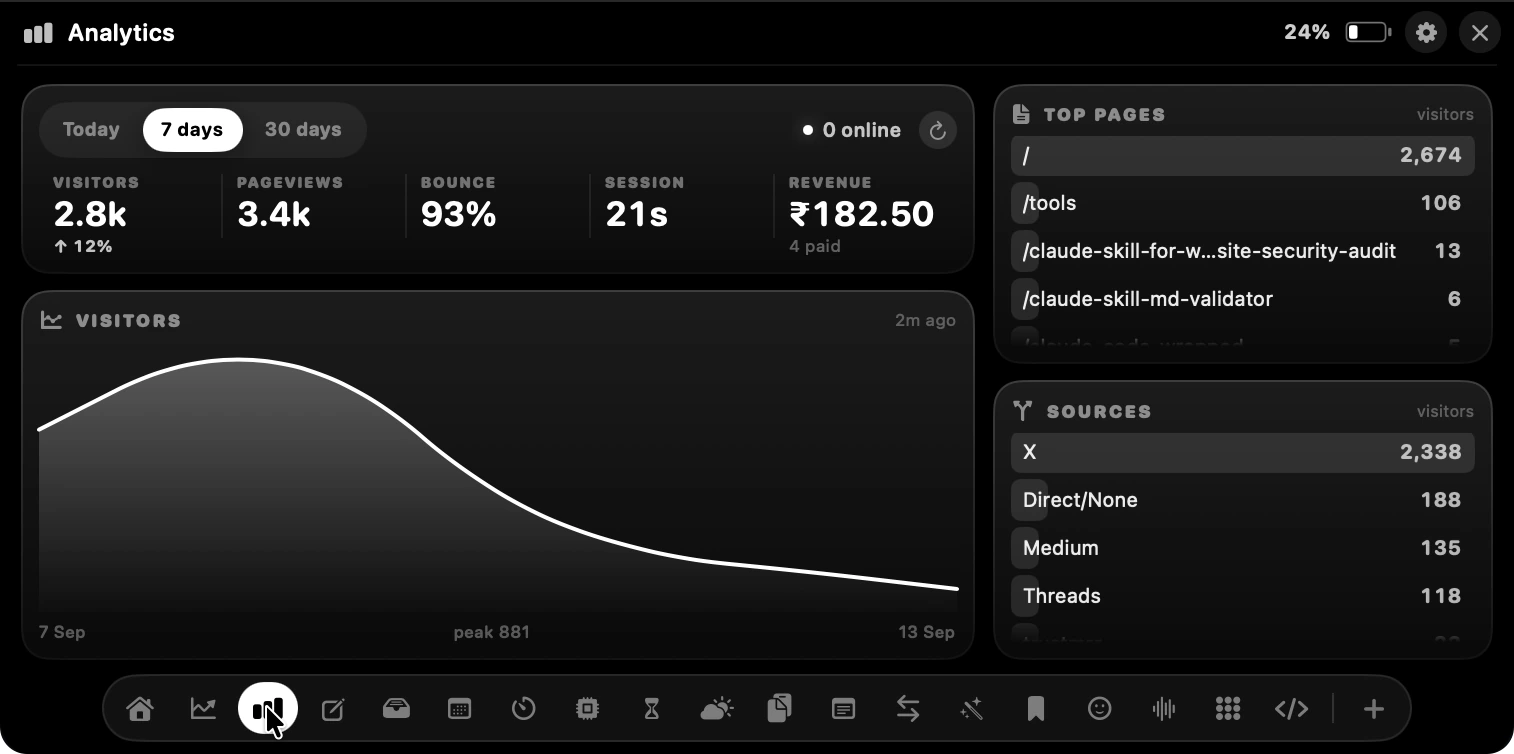
Analytics does the same job for visitors. Connect DataFast or Google Analytics and you get the numbers you actually check — people on the site right now, pageviews, bounce rate, average time, your top pages, and where everyone came from. Switch between the last 7 and 30 days with one click.
The best trick: leave a number on the glass
You do not have to open anything at all. Any tool can take over the closed notch and keep one number showing while you work. Notch Buddy calls these Live Activities, and they are the reason people stop opening dashboards altogether.



There is also a Message tool, which is pure fun. Type anything and it scrolls across your notch in dot-matrix letters — with Bounce, Wave, Sparkle, Pulse and Rainbow animations, a colour you pick, and a flash when you want someone in the room to notice.

A shelf for files that follows you around
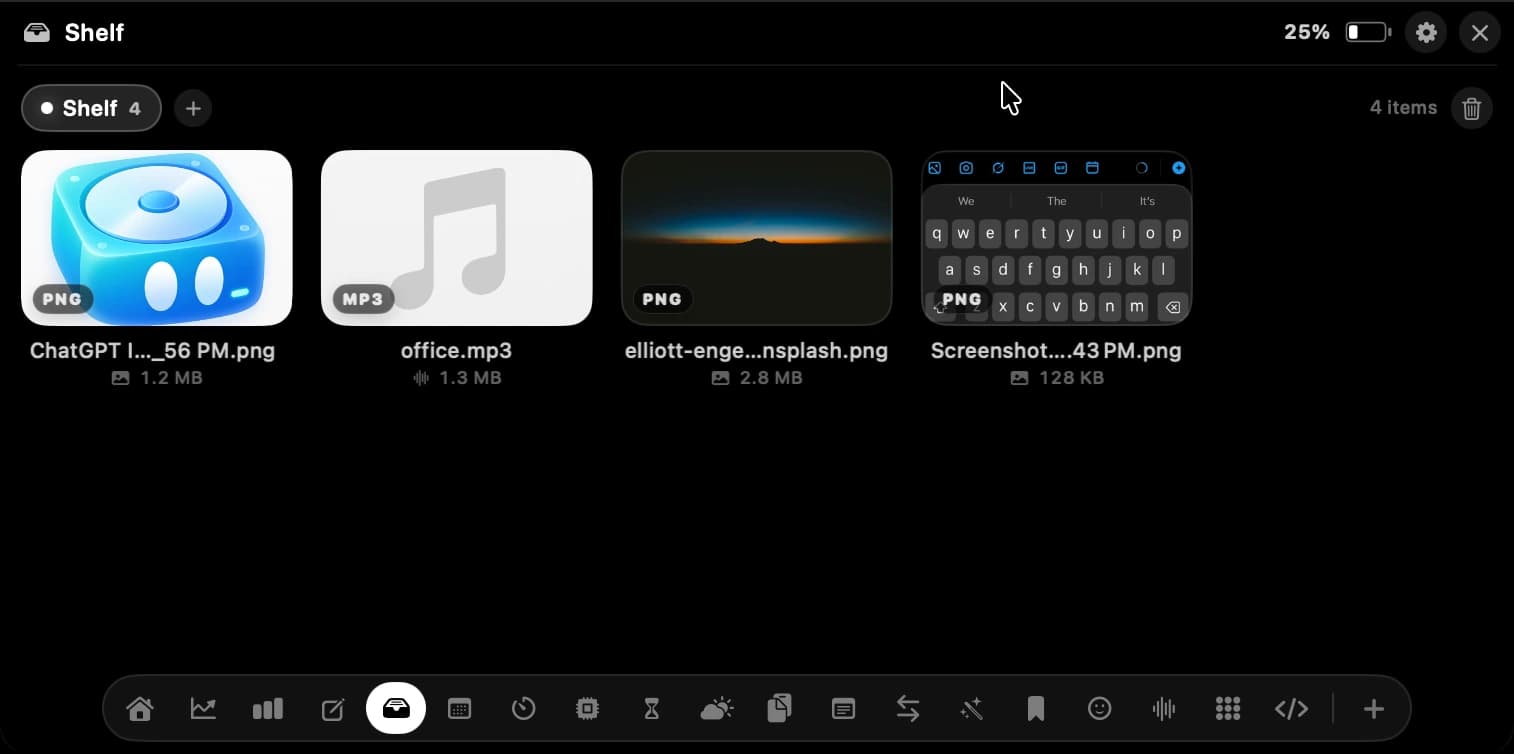
Drag a file onto the notch and it parks there. That is the whole idea, and it replaces a surprising number of trips through your Downloads folder.
The Shelf holds whatever you drop on it — screenshots, a PDF, three images, a folder — and you drag them back out into Figma, Mail, Slack or Finder whenever you need them. Nothing is uploaded. It is just a place to put things down while you move between apps.
Convert an image without a sketchy website
You know the ones. You need a PNG as a JPEG, you search for a converter, and you end up uploading your work to a site covered in ads.
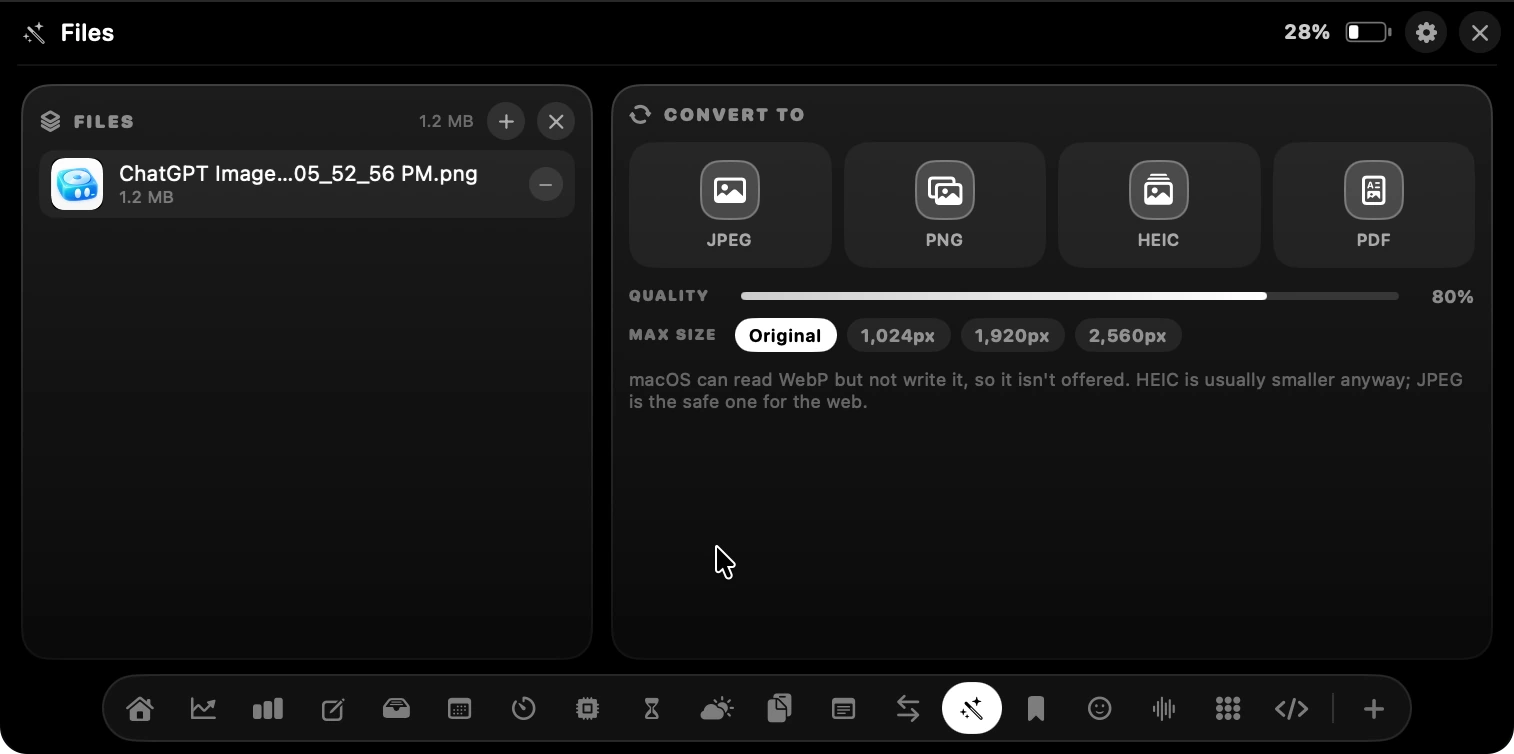
Files does it in the notch instead. Drop an image in, send it back out as JPEG, PNG, HEIC or PDF, and use the quality dial or a max file size to shrink it. It all happens on your Mac, so nothing is uploaded anywhere.
Everything you copied is still there
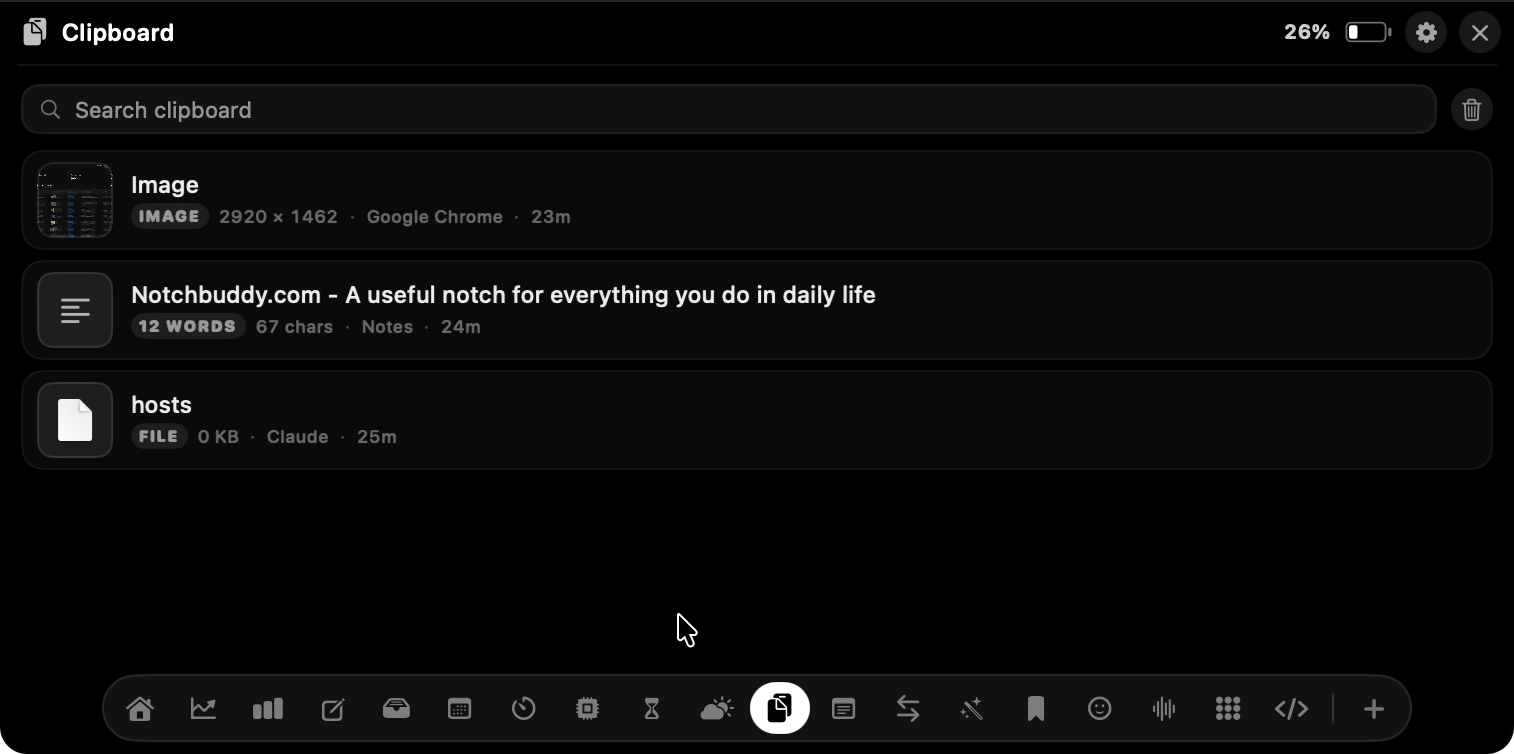
macOS remembers one thing at a time. Copy something new and the last one is gone, usually about four seconds before you needed it.
Clipboard keeps the lot — text, links, images and files — each one tagged with the app it came from and how long ago you copied it. Search it, click it, paste it. The link you copied three hours ago is still waiting.
Timers, vitals and where your day went
These three are the ones you glance at rather than use.
Timers
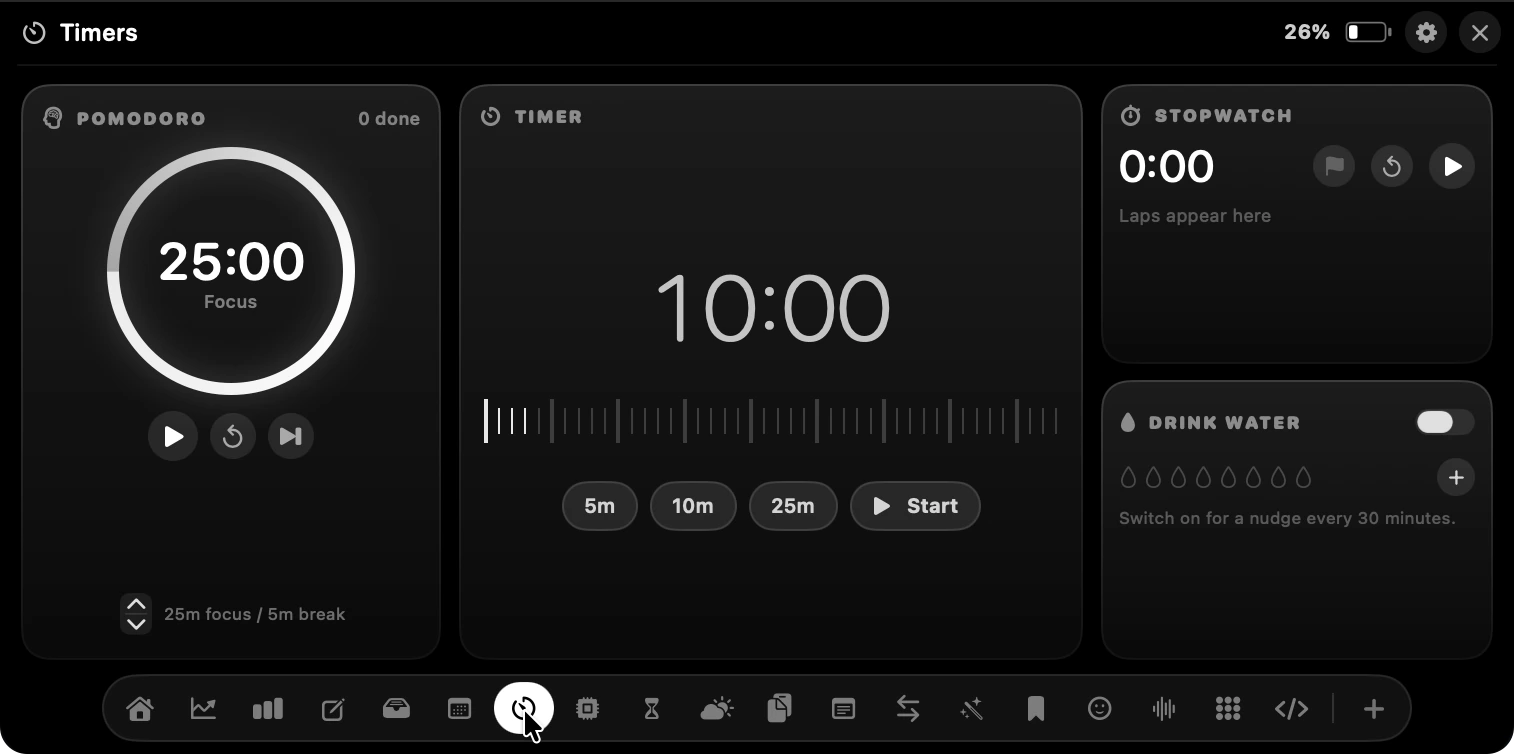
A pomodoro that remembers which round you are on, quick 5, 10 and 25 minute countdowns, a stopwatch with laps, and a nudge to drink water every half hour. Four clocks, one panel, no extra app.
Stats
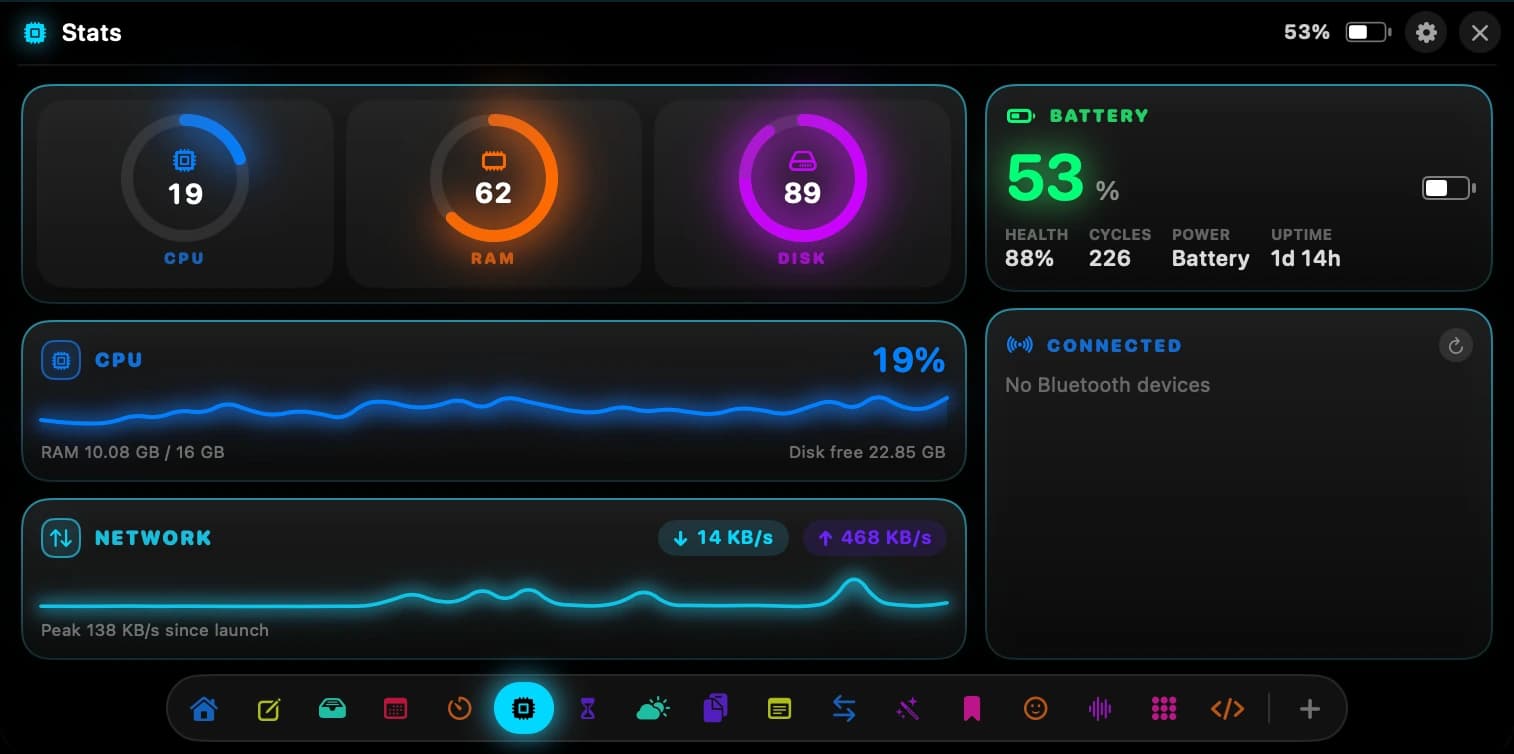
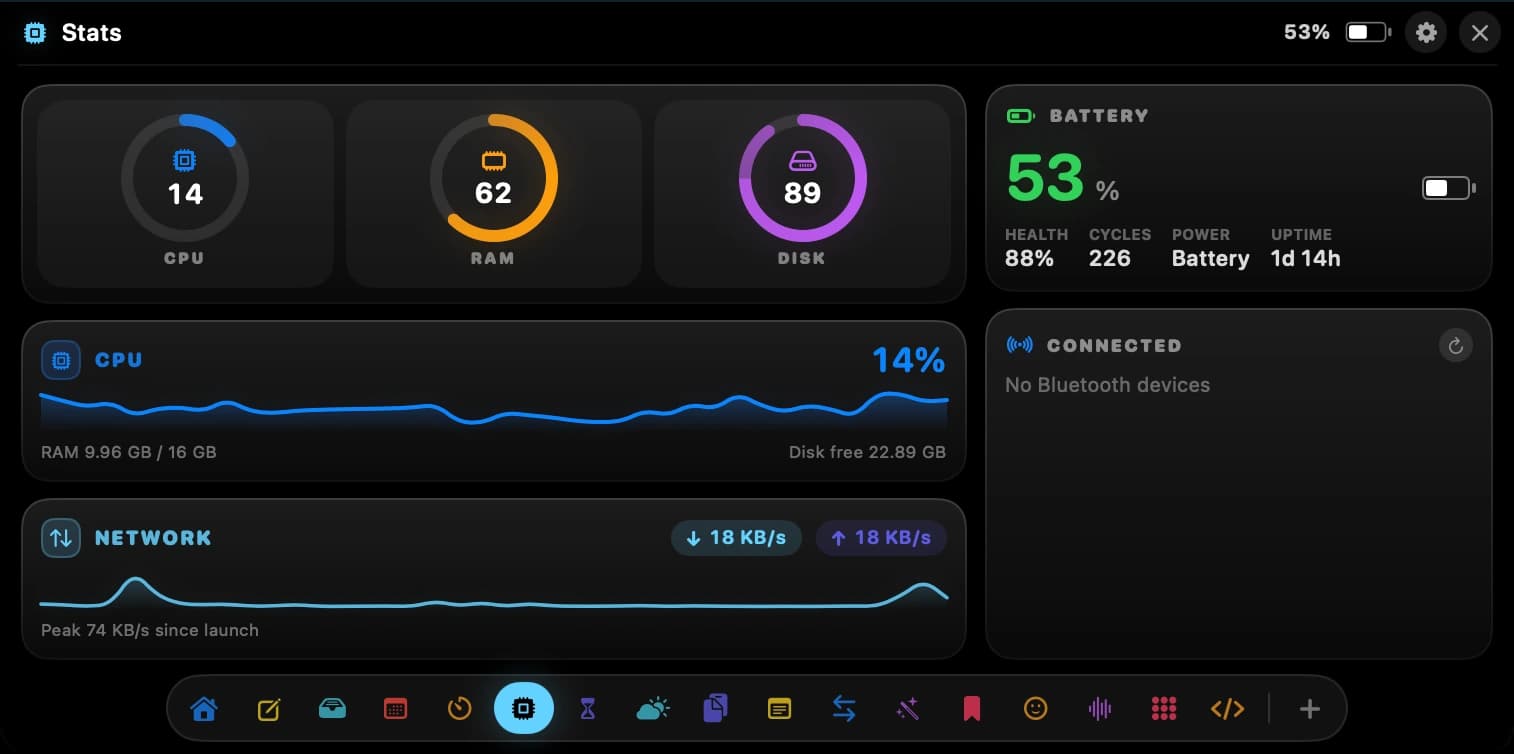
CPU, memory and disk as live rings, plus network throughput and your real battery health — the number that tells you whether the battery is actually dying or you are just imagining it. It replaces the little row of menu bar monitors most people collect.
Screen Time
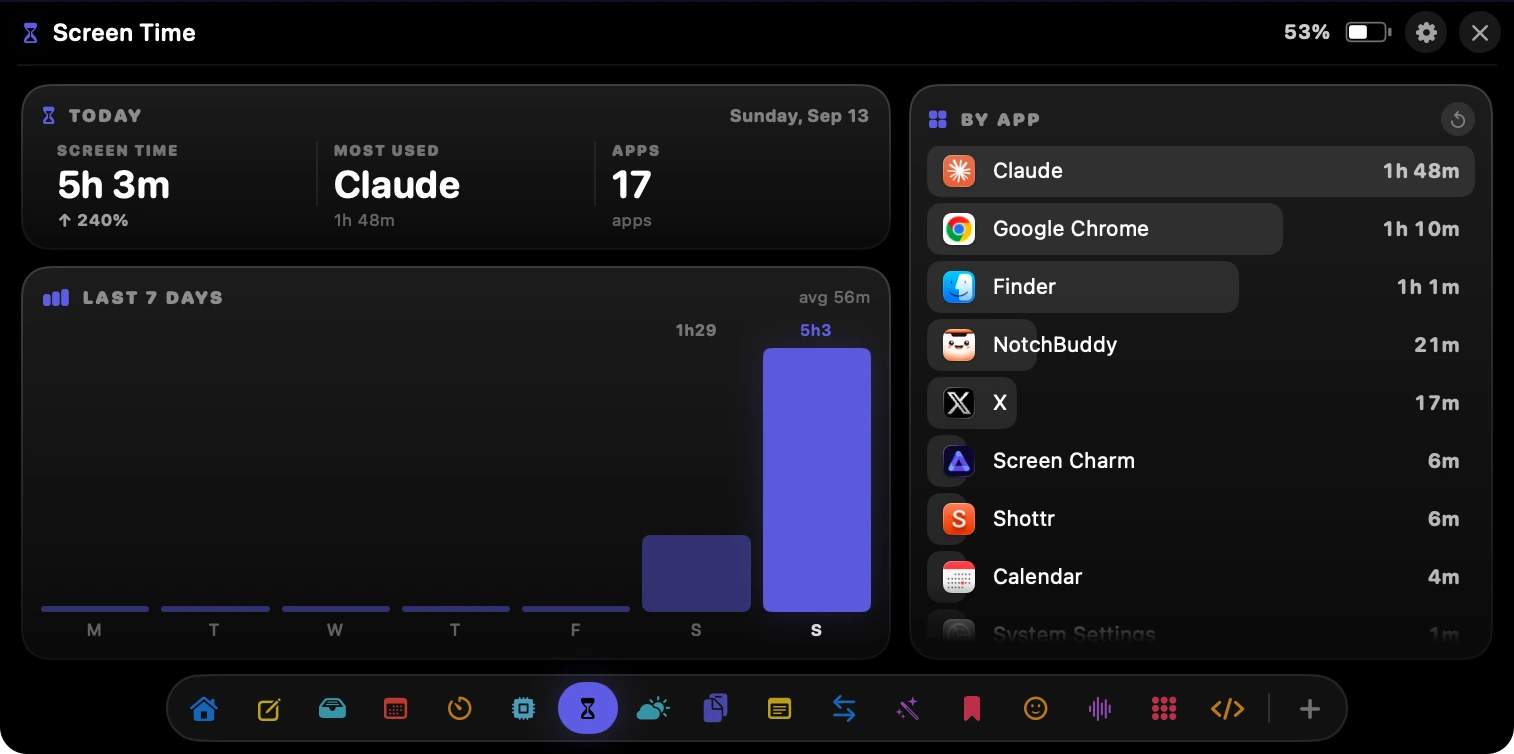
Today's total, the app you have spent the most time in, and a seven-day chart with the per-app breakdown next to it. Occasionally humbling.
If you live in Claude Code
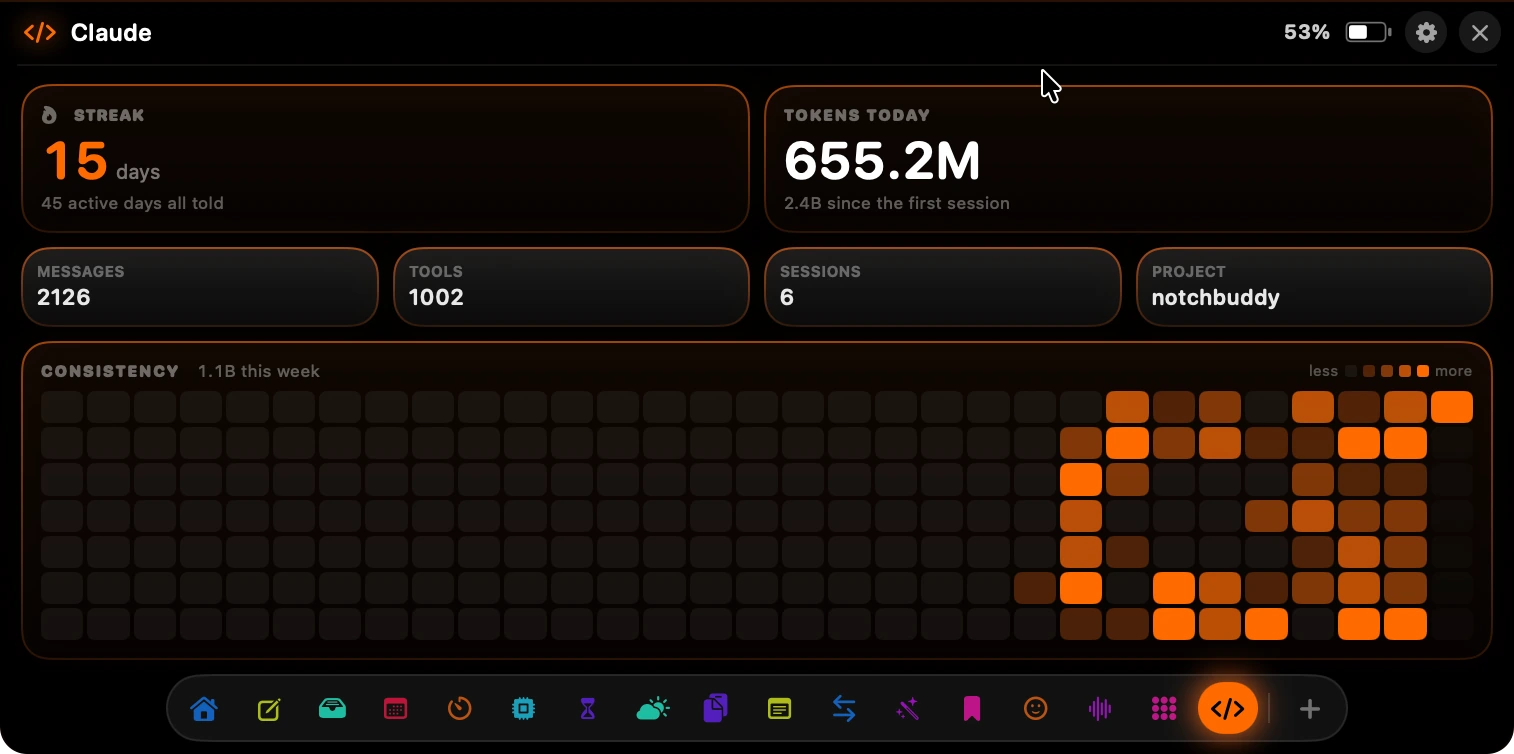
The Claude tool reads the session files Claude Code already keeps on your Mac and turns them into something you can look at: tokens used today, messages, tool calls, sessions, the project you are in, and a consistency grid that fills in as your streak grows.
It only reads the facts around your sessions — timestamps, counts, project folder names — never the text of your conversations, and nothing is sent anywhere. If you do not use Claude Code, the tool has nothing to read and switches itself off.
The small ones you will use every day
None of these deserve an app of their own. All of them are faster from the notch than from anywhere else.
Sounds
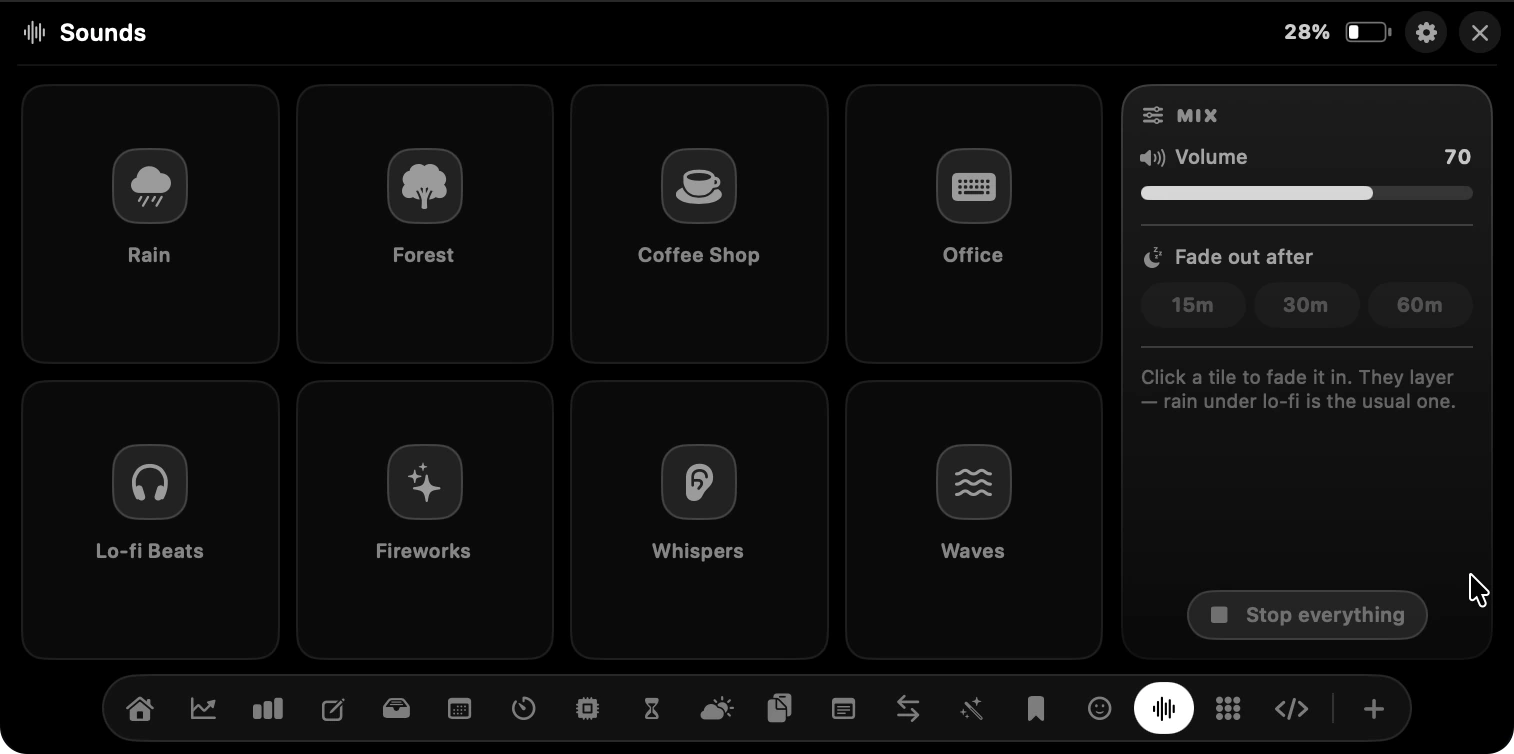
Eight rooms to sit in — rain, forest, coffee shop, office, lo-fi, fireworks, whispers and waves. Tap more than one and they layer; rain under lo-fi is the usual combination. Set a fade-out and it stops on its own.
Calendar
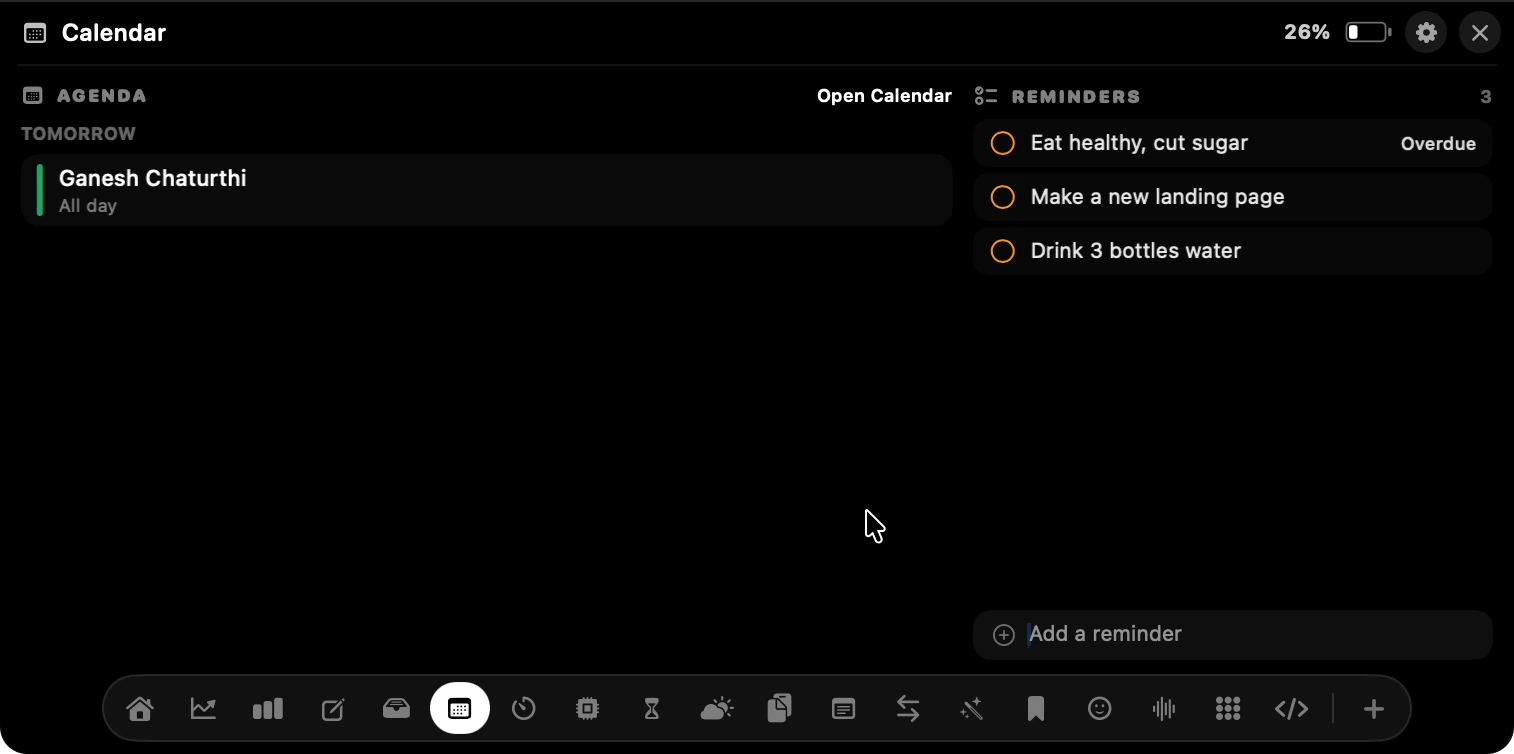
Seven days of events with your reminders beside them, and you can tick a reminder off or add one without opening anything.
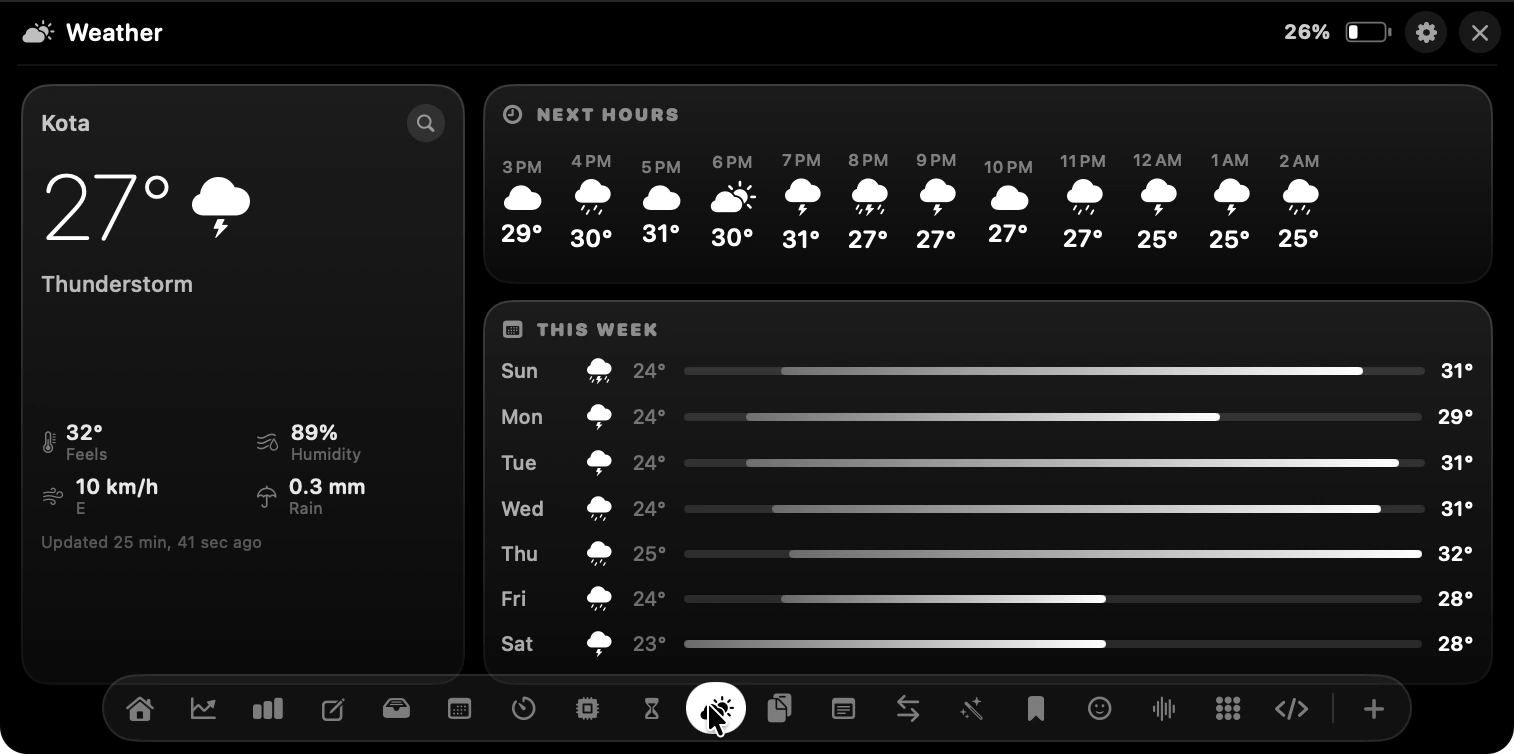
Weather
What it feels like outside rather than what the thermometer says: humidity, wind and rain, the next twelve hours, and the week as a temperature range.
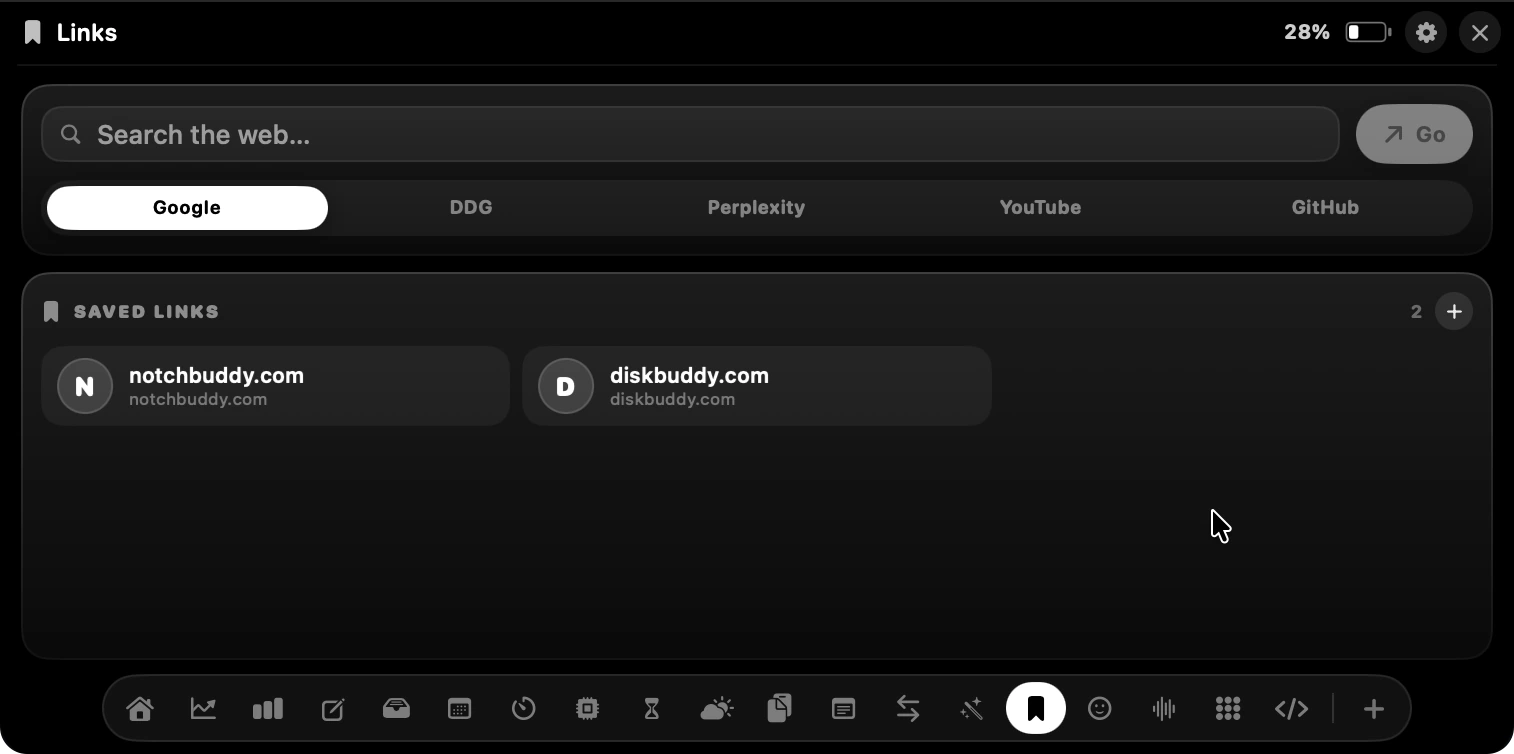
Links
Search Google, DuckDuckGo, Perplexity, YouTube or GitHub straight from the notch, and keep the handful of sites you open every morning one click away.
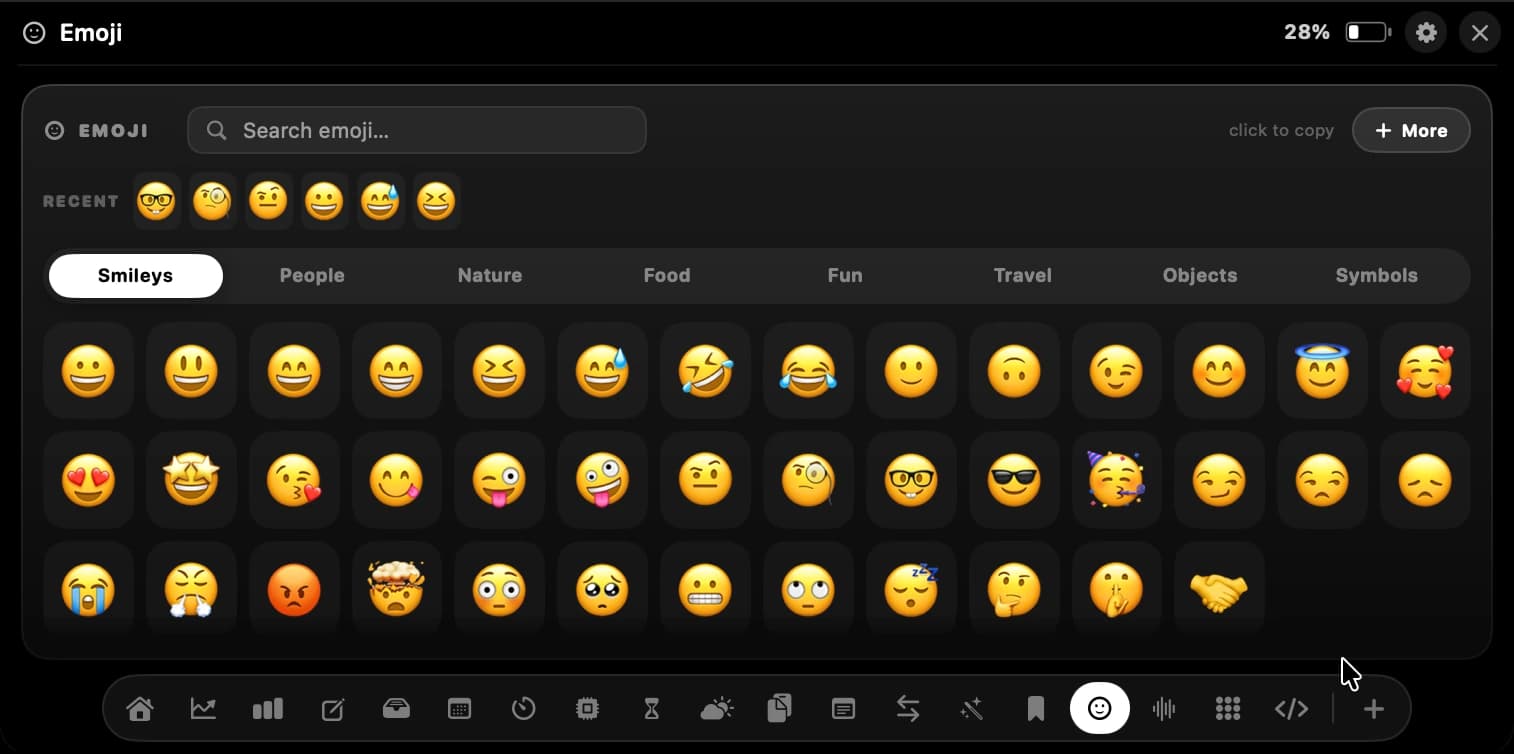
Emoji
The whole picker, searchable and sorted into categories — with no keyboard shortcut to remember and no focus stolen from whatever you were typing in.
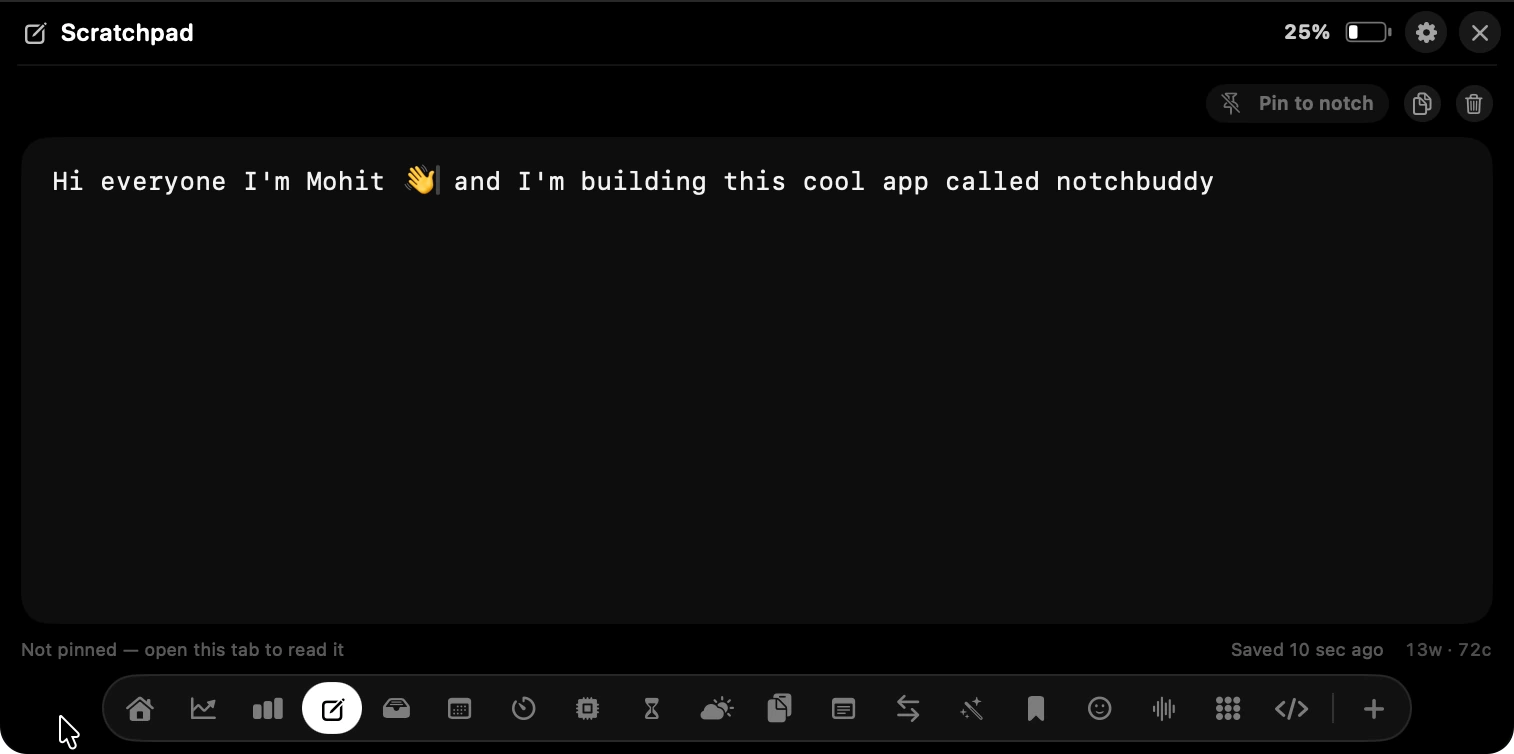
Scratchpad
One text box that never closes, for the thing you will need again in ninety seconds — a code, an address, a sentence you cut out of an email. Pin it and it stays visible while you work.
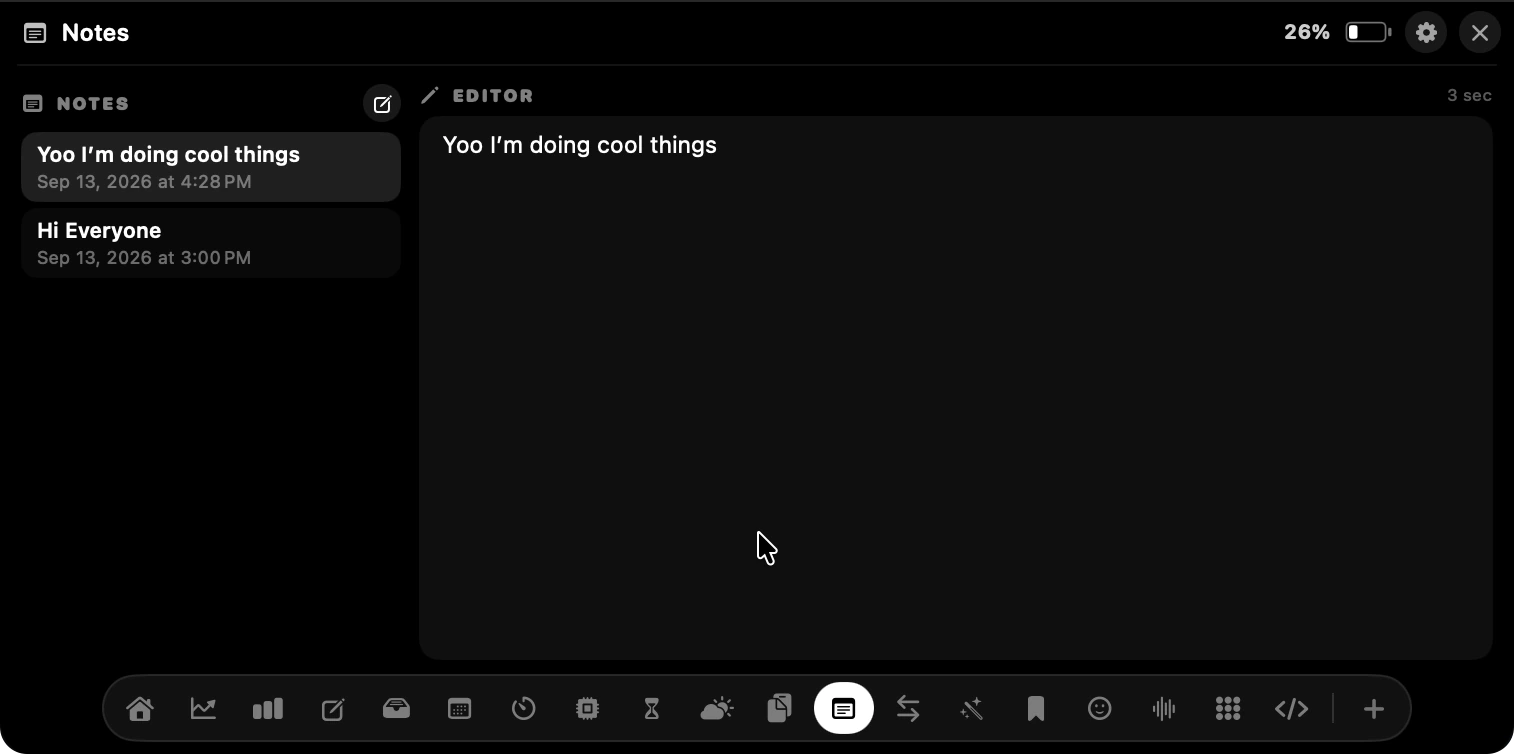
Notes
When a thought outgrows the scratchpad, Notes gives it a proper list with an editor next to it.
Units
Inches to centimetres, pounds to kilos, Celsius to Fahrenheit, one currency to another. A conversion is not worth a browser tab.
Pick a look you can live with
The panel sits at the top of your screen all day, so Notch Buddy ships three themes and changes every tool at once when you switch:
- Minimal — black and white, nothing competing with the numbers.
- Playful — one system colour per tool, used in the numbers rather than the cards.
- Neon — electric colours with the glow turned up. Most of the screenshots above are this one.
So what does a normal day look like?
You open the Mac and the notch already says how many people are on your site. A sale lands and a banner slides past with the amount. You start a pomodoro without leaving your editor, pull rain and lo-fi up underneath it, and drag two screenshots onto the shelf so they are there when you get to Slack.
Someone asks for that link you copied this morning — it is still in the clipboard. The client wants the PNG as a JPEG under 500 KB, so you drop it in and drag it back out. At six you glance at Screen Time and find out where the afternoon went.
You never opened a dashboard. You never left the app you were in.
That is roughly how the people already using it describe their day too — their words are on the home page.
What it costs
Notch Buddy is a one-time purchase — all 19 tools, all three themes, no subscription. It needs macOS 14 Sonoma or later, and it runs on both Apple silicon and Intel Macs. Macs without a notch get a drawn one and everything works the same.
Everything you keep in it — clipboard, notes, shelf files, timers, screen time — stays on your Mac. The only things that leave are the read-only keys you connect yourself, talking directly to your own Stripe or analytics account.
Your notch has been holding a camera and nothing else this whole time. It can do a bit more than that.